All guidesShare and find
Sharing and publishing
Everything you create is private until you share it. You can share to the team's group, make it public so everyone finds it under Explore, or send the pitch as an image in the group chat.
Where to find it
- Open an exercise or a session
- the three-dot menu top right
- Share
1Open the menu
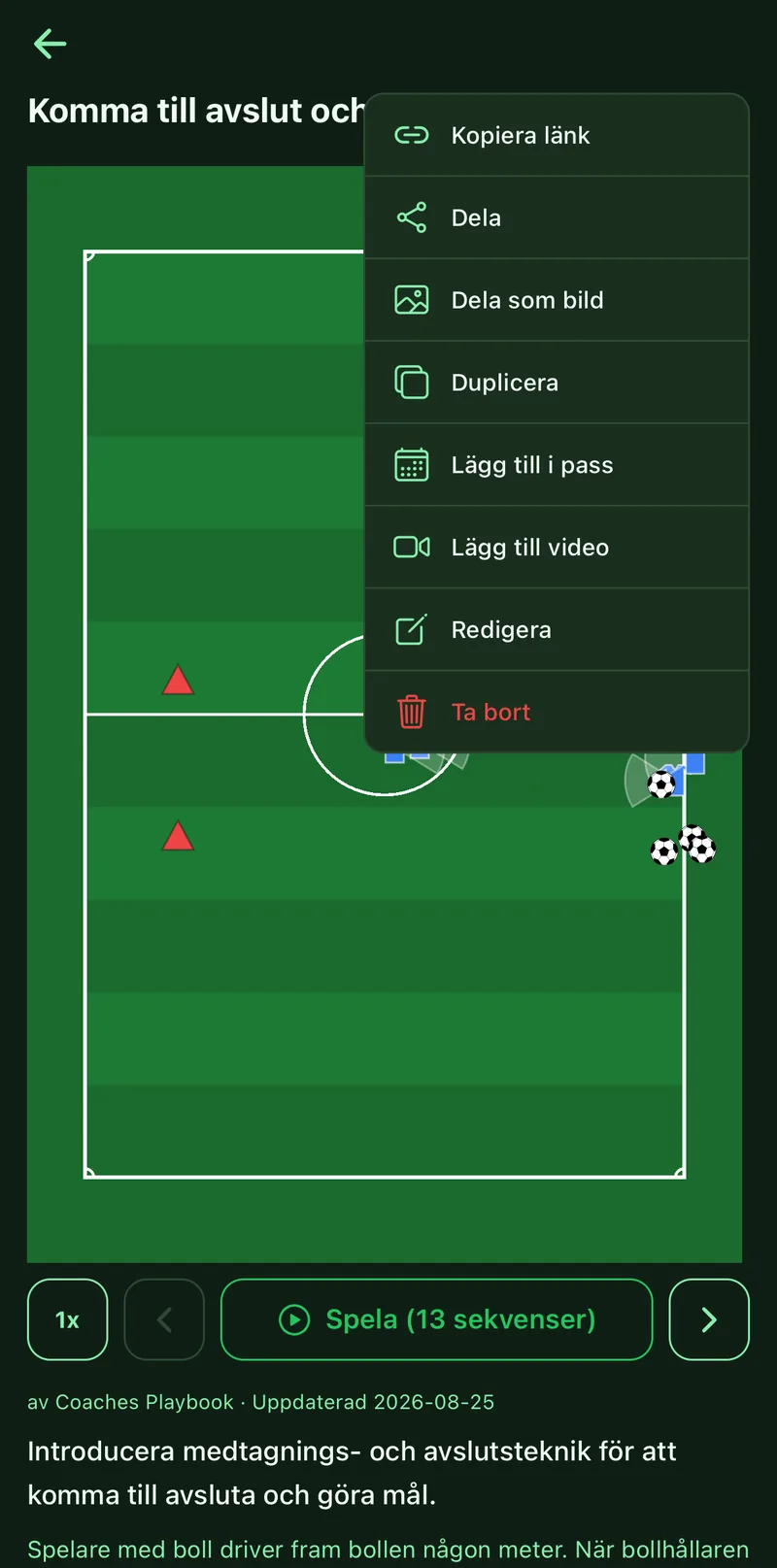
Open the exercise, tactic or session and tap the three-dot menu in the top right. There you find Share, Share as image and Copy link.
2Share to the group
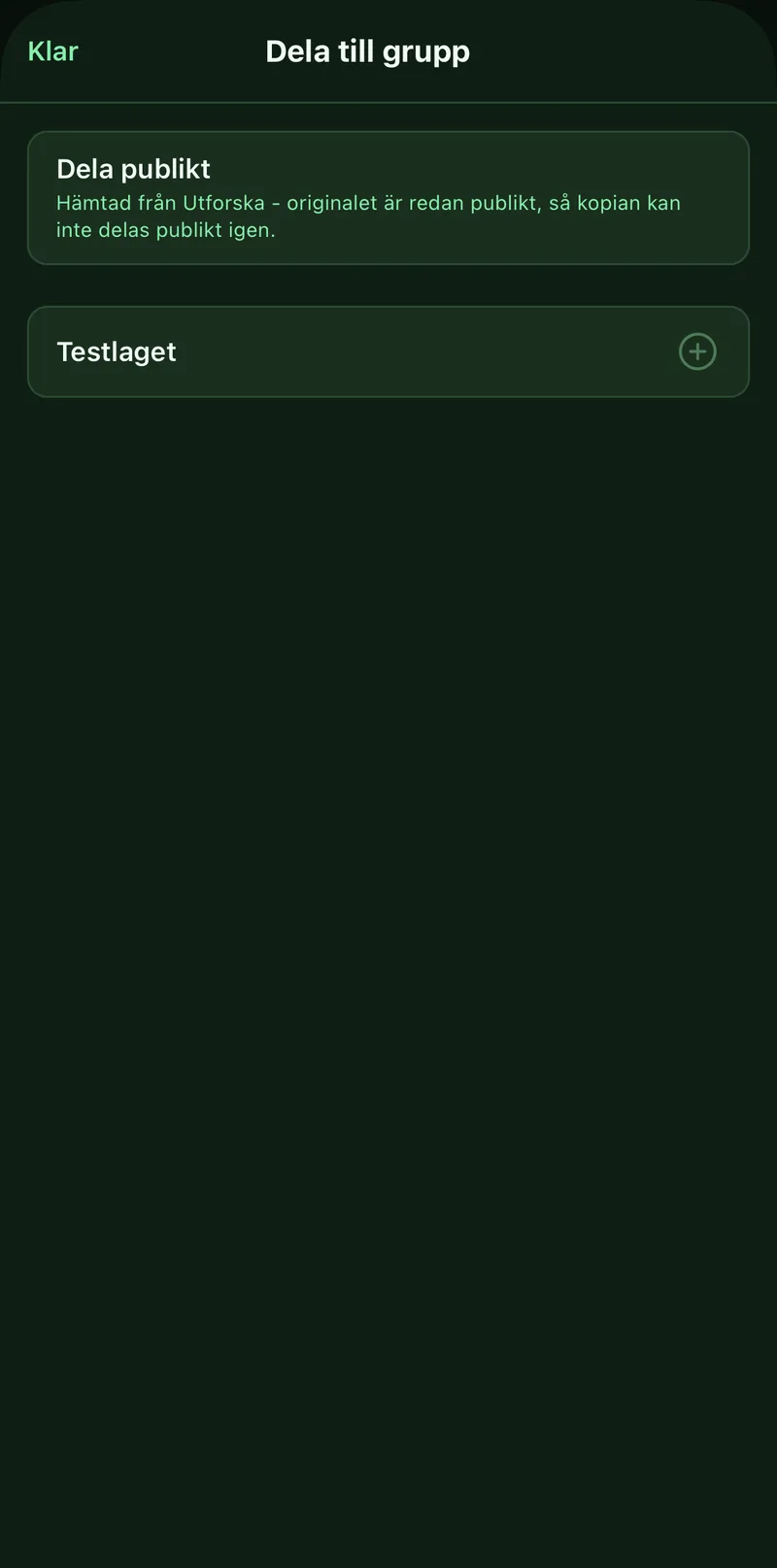
Tap Share and tick one or more groups. The content shows up on the group's matching tab for every member. If you have no group yet, create one on the Groups tab first.
3Publish for everyone
Turn on Share publicly in the same dialog. Anyone can then find the exercise under Explore and copy it. A public session also makes its exercises public.
4No player names in public content
A public exercise cannot be empty and cannot contain player names. The app stops the publish and offers to remove the names, shirt numbers are kept. Lineups can never become public.
5Send as an image or a link
Share as image sends the pitch as a picture through any app, for example the team chat. Copy link puts an app link on the clipboard: another coach with the app opens the exercise straight away, provided it is shared with them or public.