All guidesPlan
The calendar
The calendar is the team's schedule. Every coach in the group sees the same trainings and matches, each training can have a session linked and each match a lineup. This is also where you start the session or the match live.
Where to find it
- Calendar
- the plus button
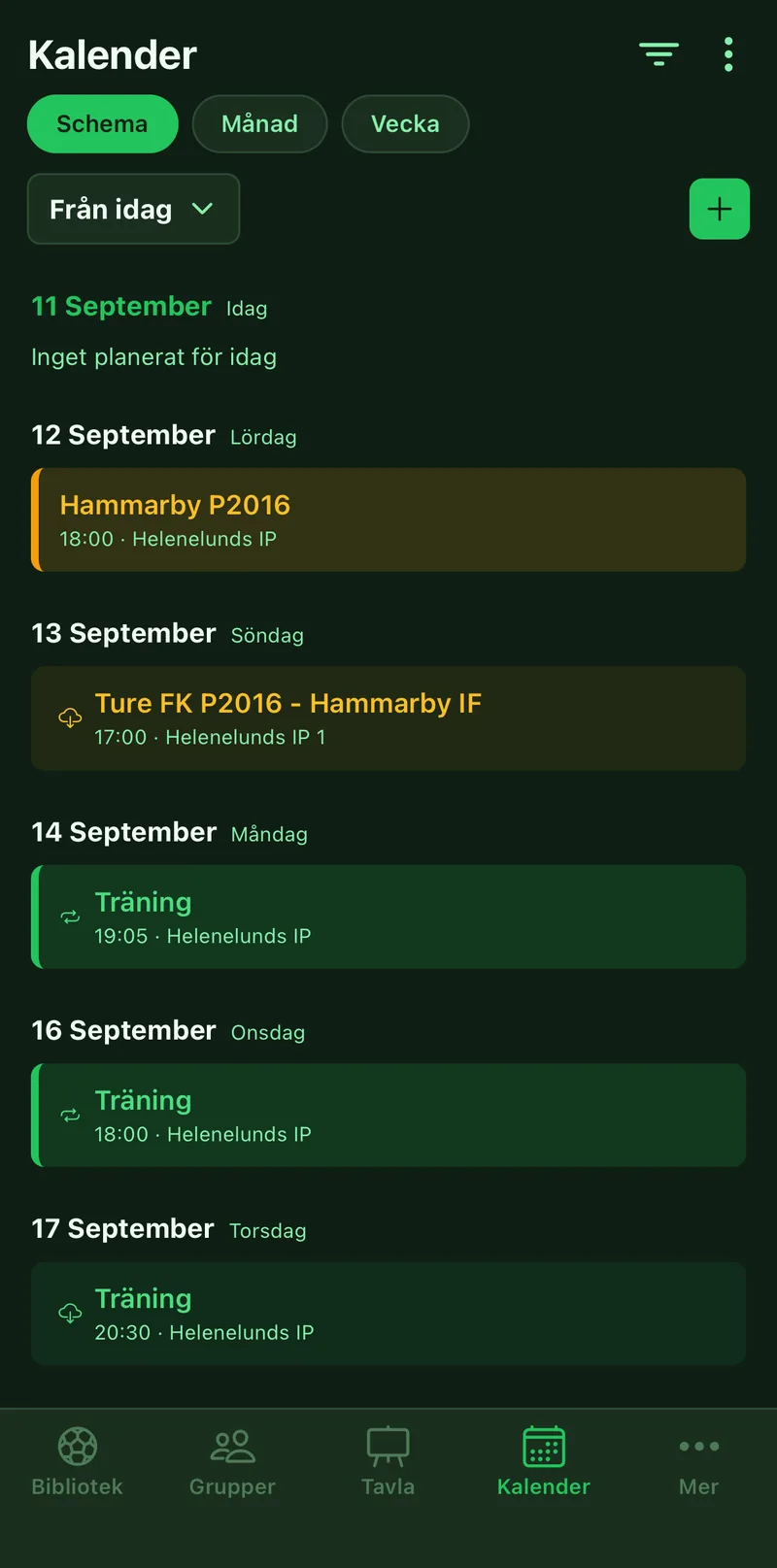
1Add a training or a match
Tap plus and choose Training or Match. Set date, time and location. A match also has an opponent and home or away.
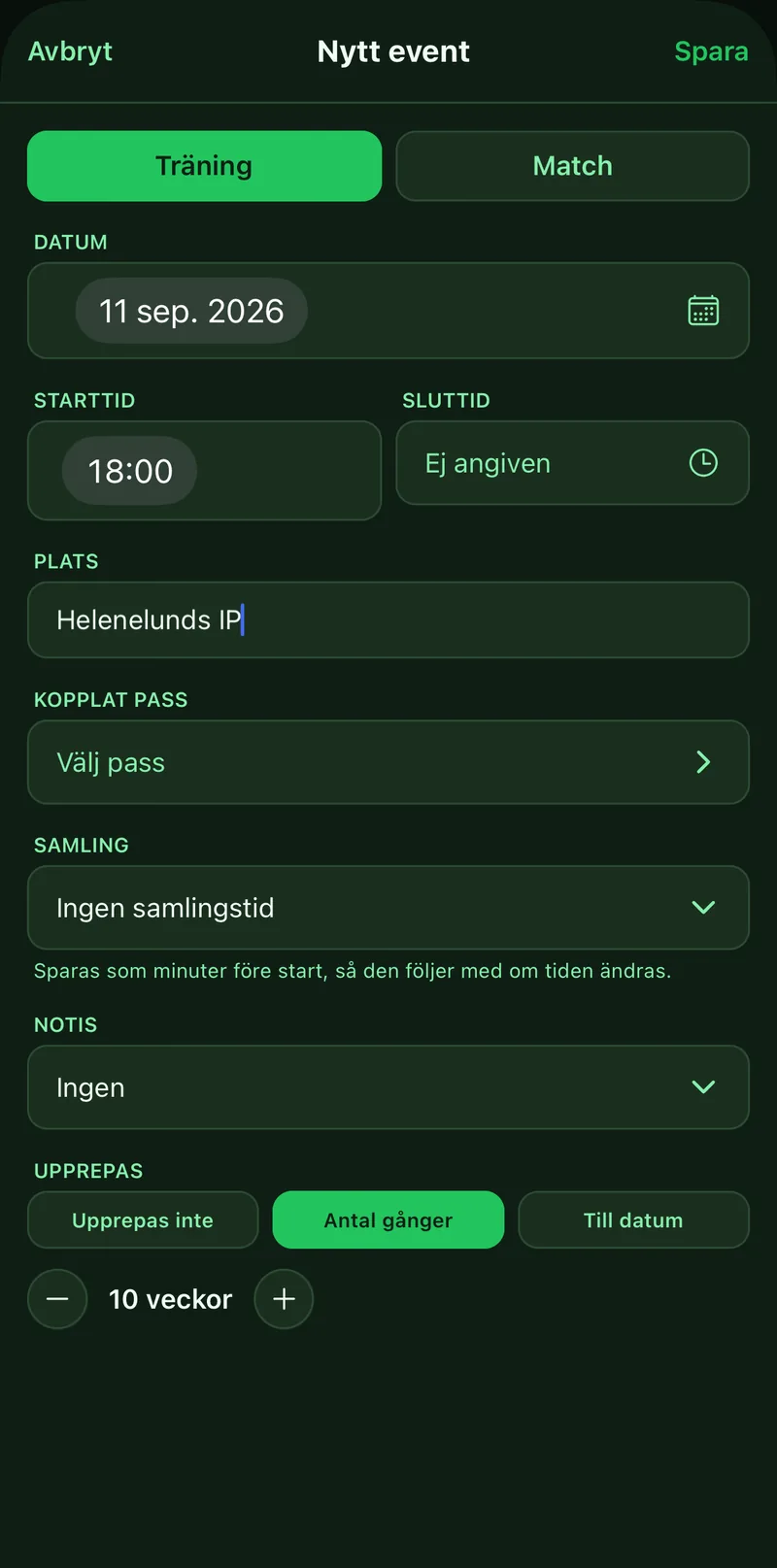
2Create the whole season at once
Under Repeats choose Number of times or Until date, and the training is added every week. When you later edit a repeating training the app asks whether the change applies to it, all upcoming ones or all of them.
3Link a session
Tap Pick session in the form, or on the training afterwards, to link a session from the library. Its exercises then show right on the training. On a match you link a lineup and the squad the same way.
4Pull in the club's schedule
Is the schedule already in 360Player, MyClub or anything else with a calendar link (ICS)? Open the menu in the top right, choose Imported calendars and tap Add calendar. The events sync automatically and can be paused or removed whenever you like.
5Get a reminder
Set Notification on an event and you get a push before it starts. Meet-up is saved as minutes before kick-off and follows along if the time changes.
6Go live
Open a training and tap Start session, or a match and tap Start match. See the guides Run a session live and Live match.