All guidesCreate
The exercise screen
Every exercise has its own screen with the pitch, the description and the menu holding everything you can do with it. This is also the library around the exercise: how to find the right one among many, and where a deleted exercise goes.
Where to find it
- Library
- tap an exercise
1Read and play
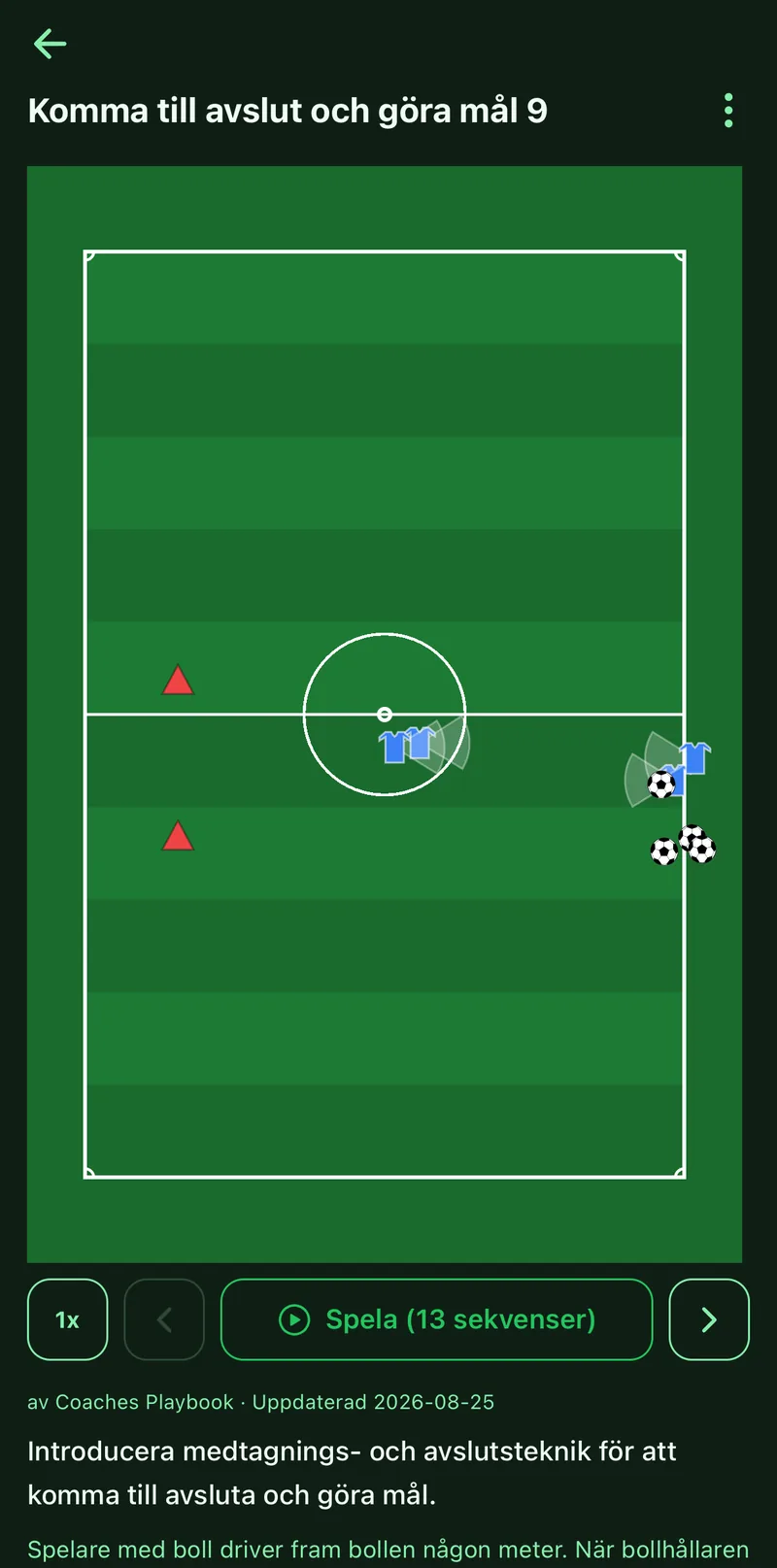
The pitch sits at the top. If the exercise has slides, tap Play to see the movement, and 1x to change the pace. Below the pitch are the introduction, description, key points and equipment.
2The menu
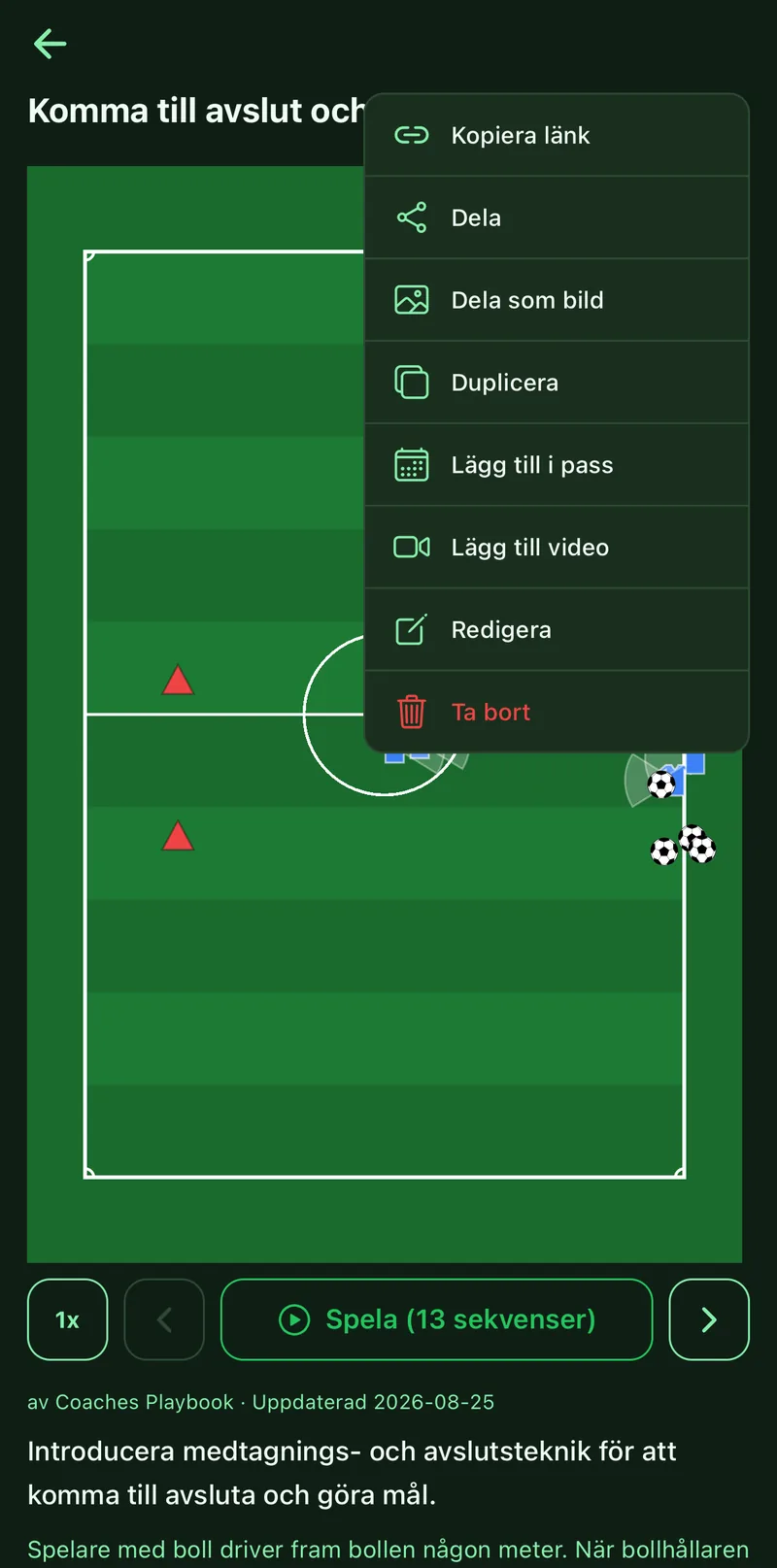
The three-dot menu in the top right holds everything: Share, Share as image, Copy link, Duplicate, Add to session, Add video, Edit and Delete.
3Put it in a session
Tap Add to session and pick the session. The exercise is added last in the plan with its duration. If there is no session yet, create one on the Sessions tab first.
4Copy and change
Duplicate makes a copy in your library. Useful when you want a variant for another age, or to rework an exercise taken from Explore.
5Find the right exercise
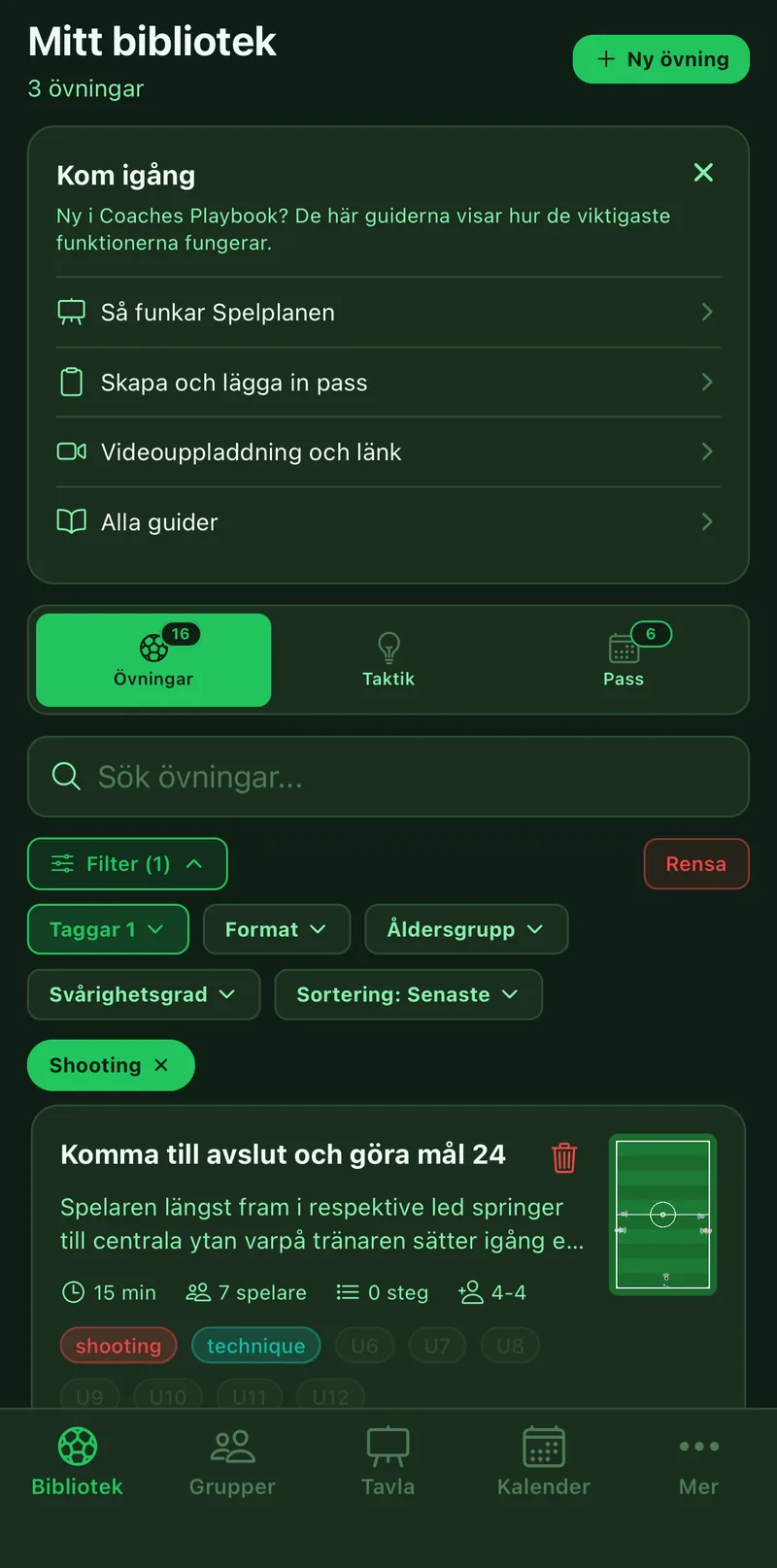
In the library, tap Filters and choose tags, format, age group and difficulty. The search field searches titles. Long-press an exercise and choose Select several to delete many at once.
6Undo a delete
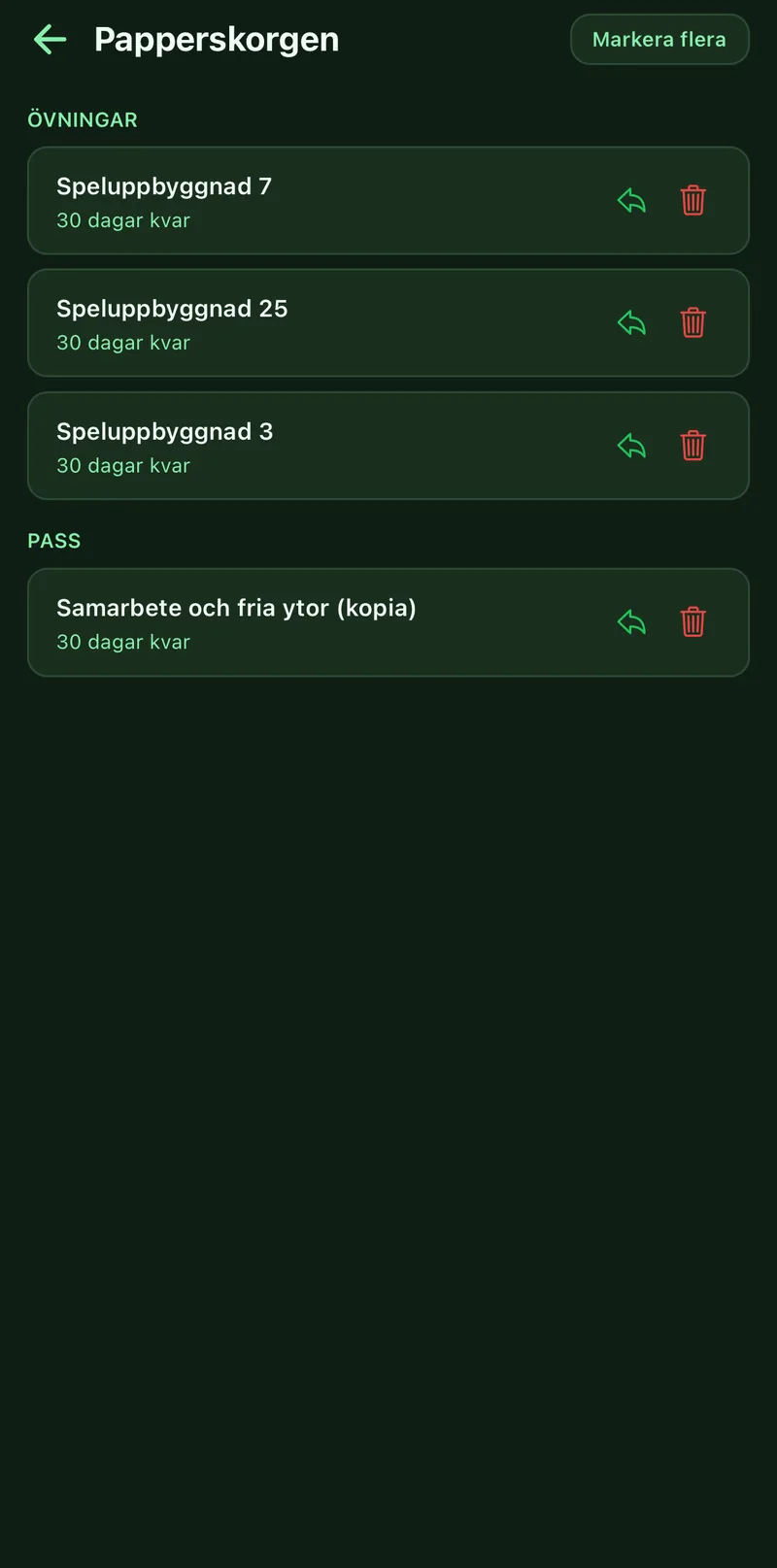
Deleted exercises, tactics, sessions and events sit in the Trash under Profile for 30 days. Tap Restore on a row to get it back. The group's shared content has its own trash in the group's menu.