All guidesCreate
Video on an exercise
A video shows how the exercise runs in a way a drawing cannot. You can film straight from the app, pick a clip from your gallery or paste a YouTube link. An exercise can hold up to three videos.
Where to find it
- Open an exercise
- the three-dot menu top right
- Add video
1Open the menu
Open the exercise and tap the three-dot menu in the top right. Choose Add video. If a video already exists the row is called Manage video.
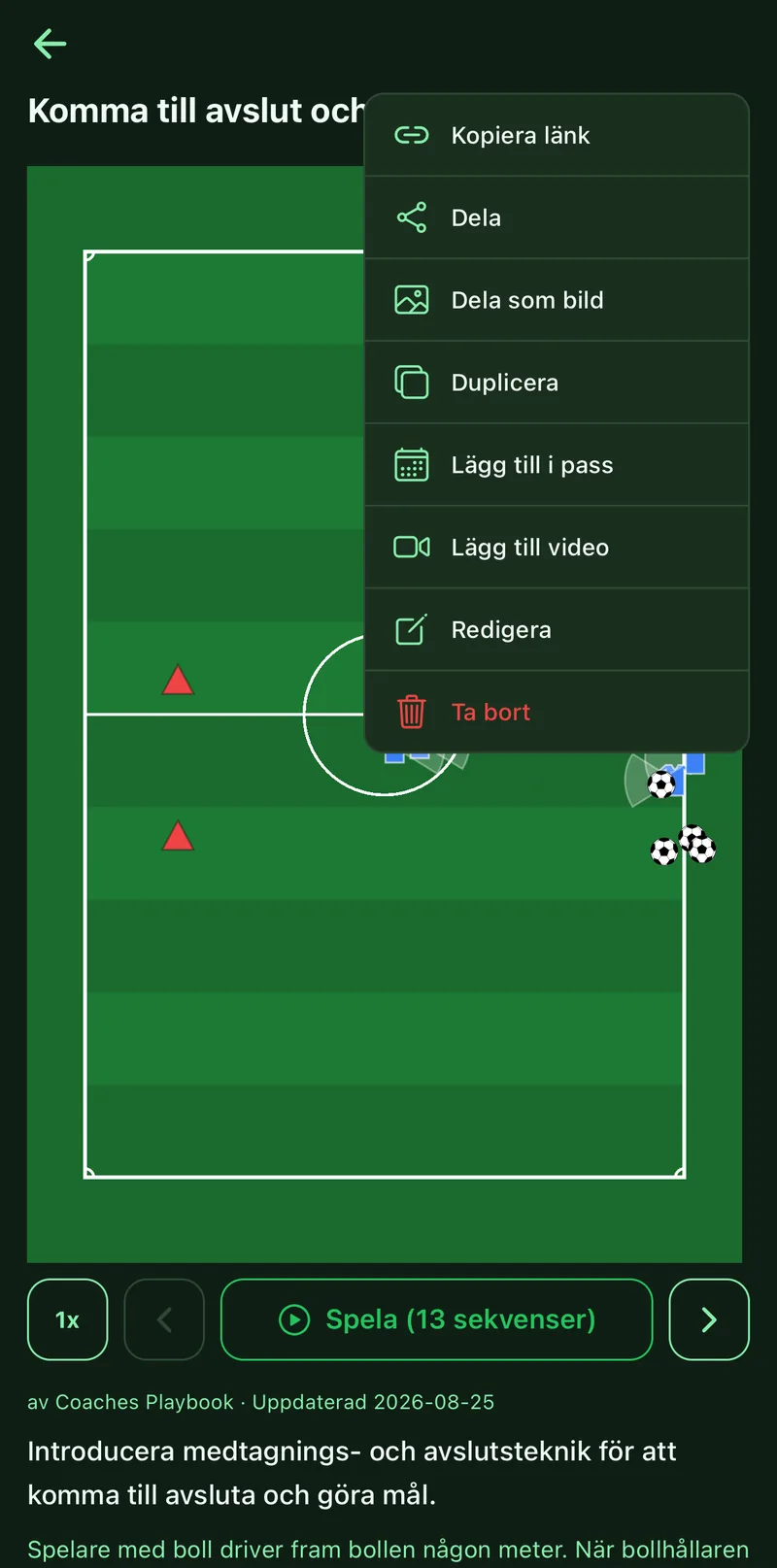
2Pick a source
Tap Record to film now, Pick from gallery for a clip you already have, or Link YouTube and paste the address. The video shows on the exercise screen.
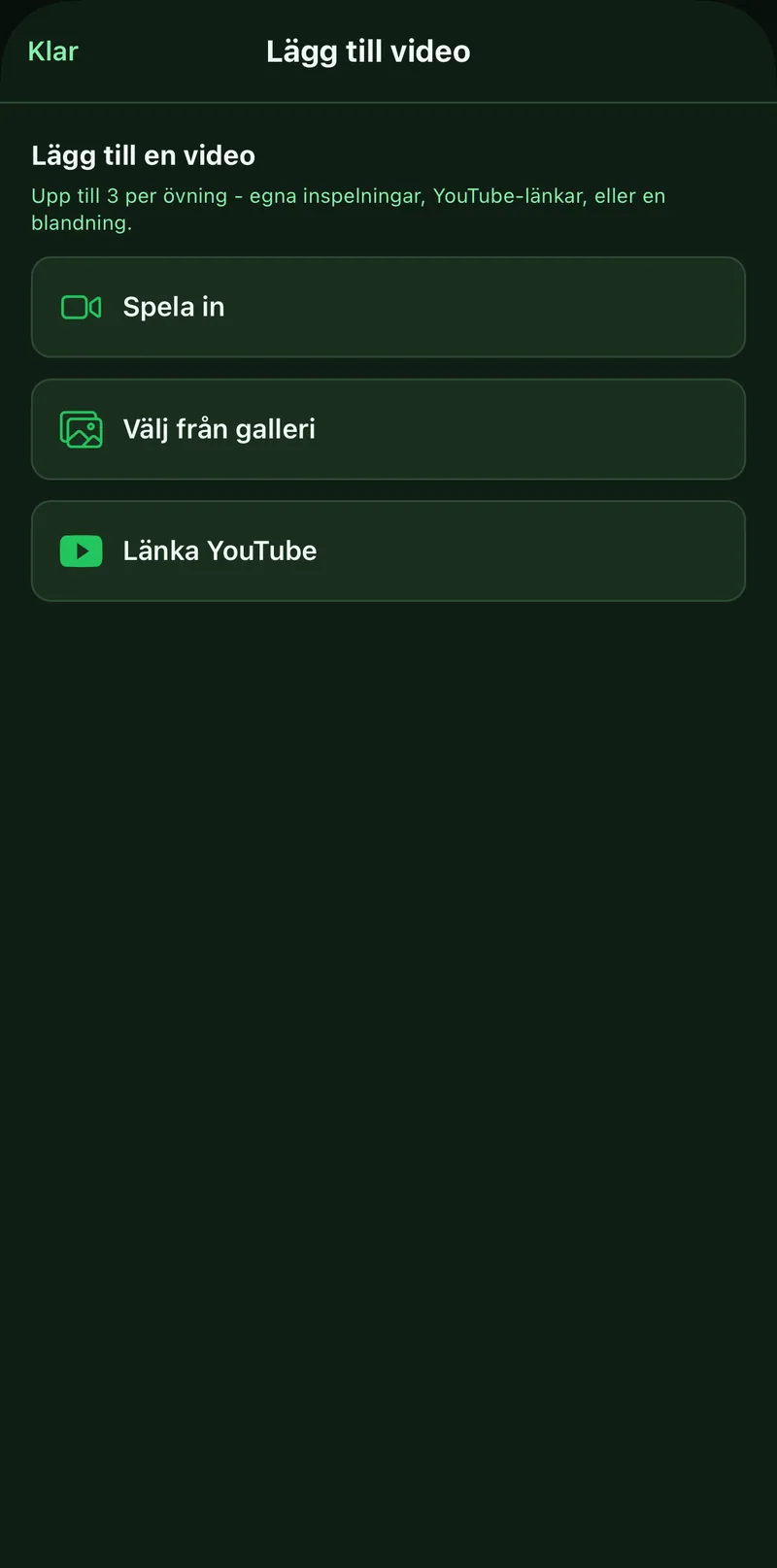
3Decide who sees it
Your own clip is only shown to you. If the exercise is public you can turn on Share video publicly so everyone who finds the exercise sees the clip. YouTube links are always visible to anyone who can see the exercise.