All guidesCreate
The field editor
The pitch is where you build exercises, tactics and lineups. You place players, draw runs and passes and show the play step by step, so it can be explained on the pitch or sent to the players before training. The same editor is used on the board, when creating an exercise, and on the web. The tools sit in the row at the bottom.
Where to find it
- Library
- New exercise
- the Pitch tab
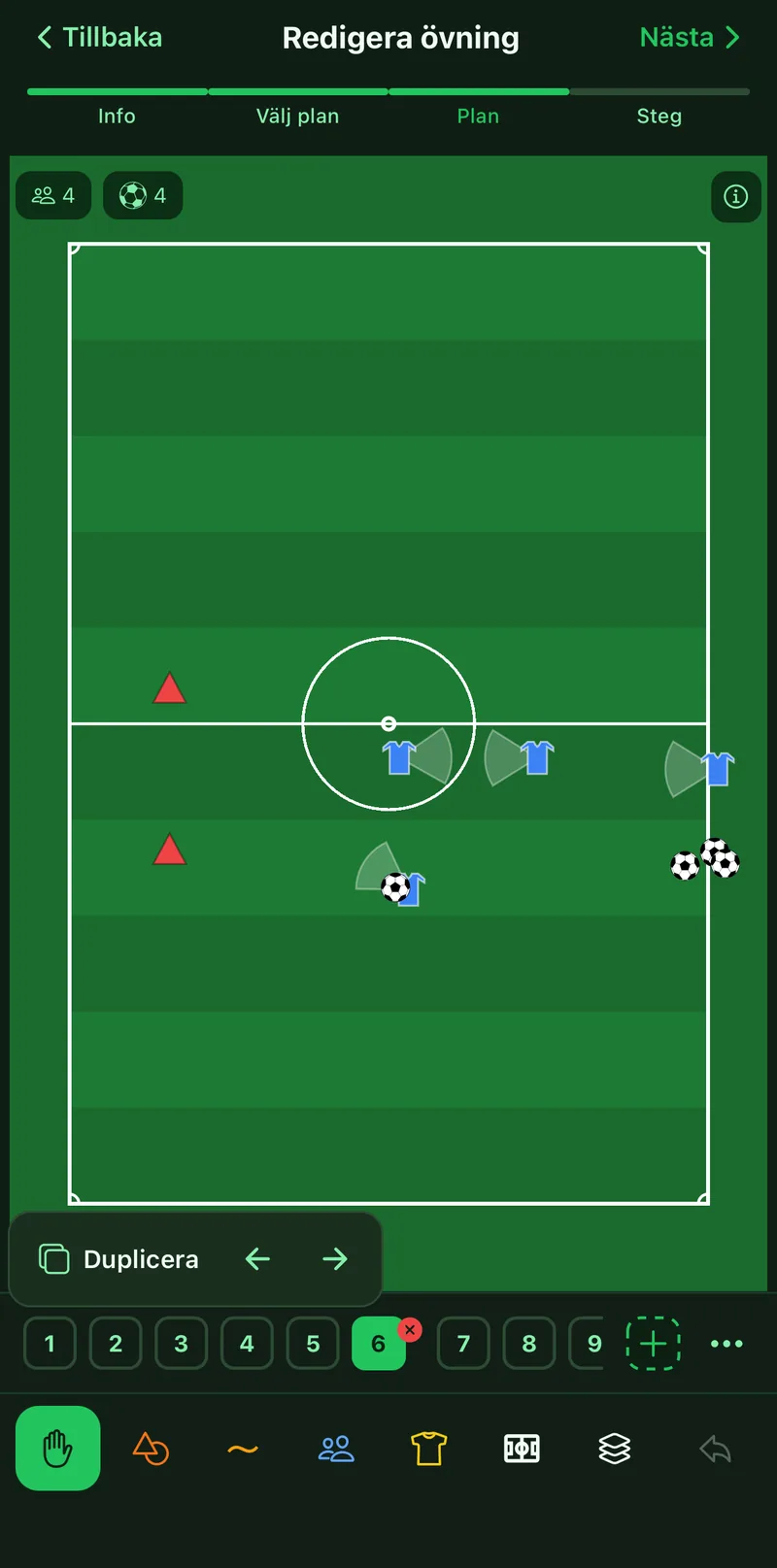
1Place players and objects
Tap the objects button, then what you want: ball, cones, goals, zones or text. The Shirt row unfolds home and away players, goalkeepers, joker and more jersey colours. Then tap the pitch where the object should stand.
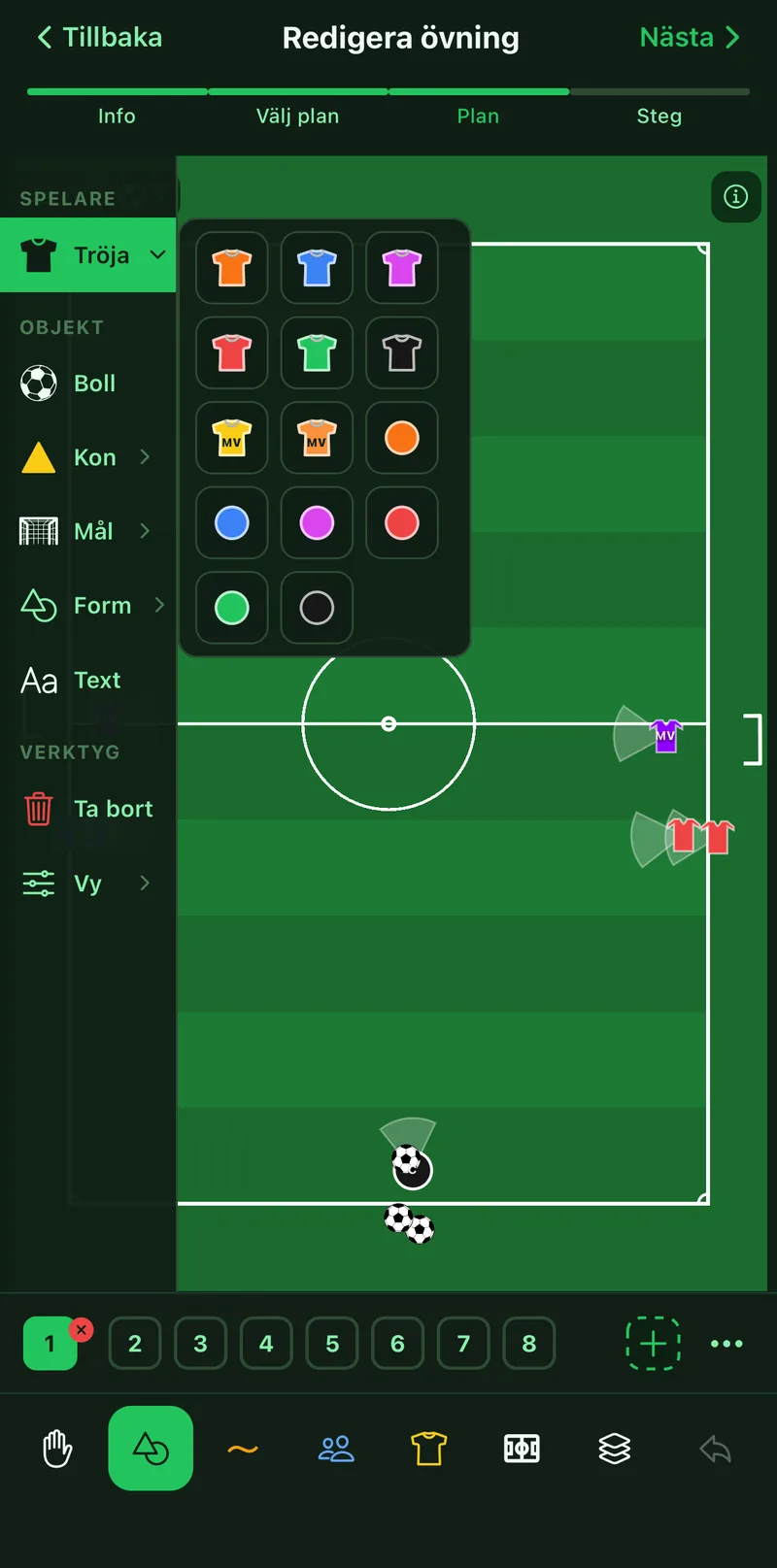
2Draw runs and passes
Tap the lines button and pick a type: player run for home or away, ball pass, plain line or freehand, solid or dashed. Drag on the pitch. Select an arrow and tap the swap icon to make it double-headed.
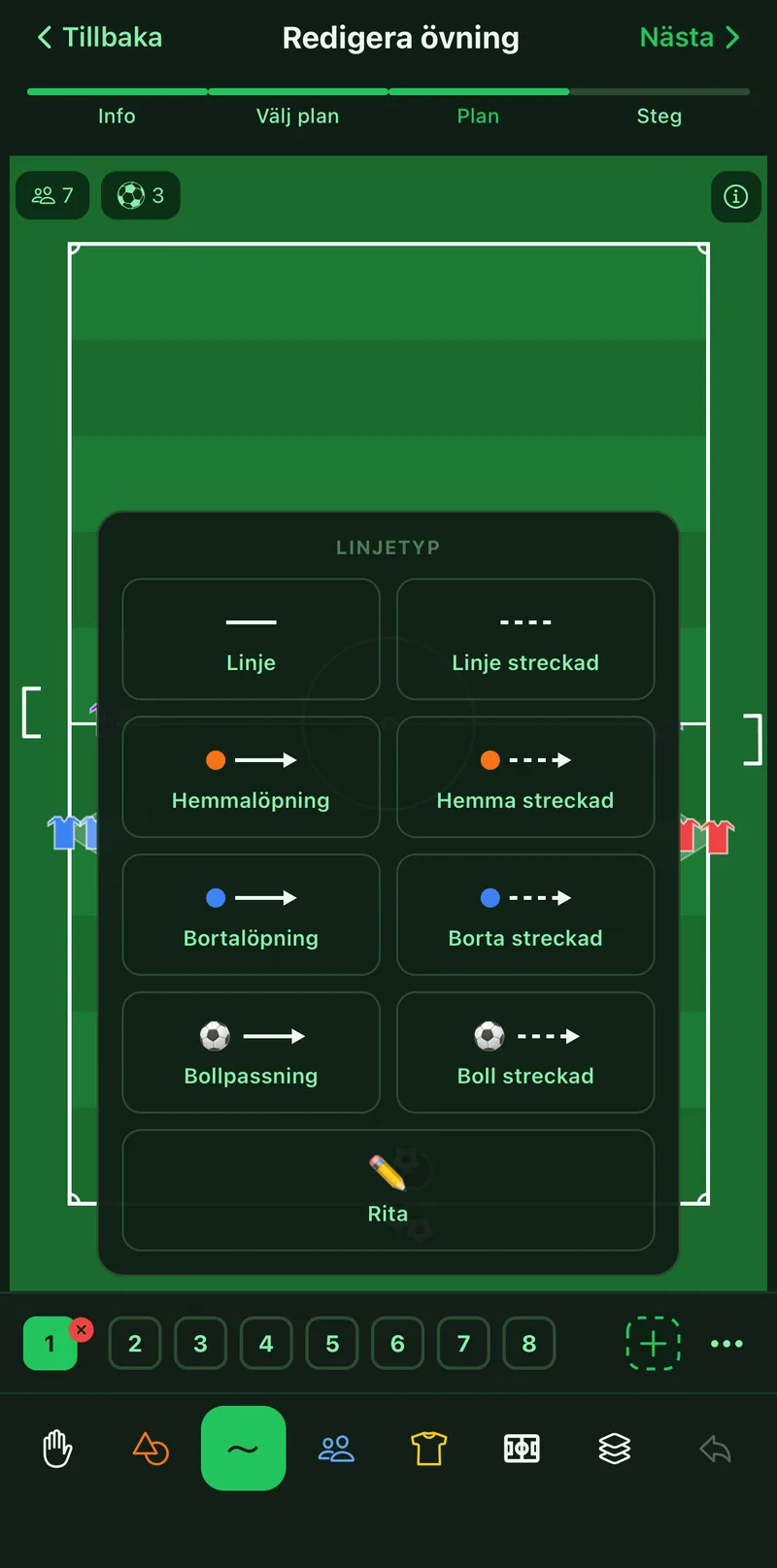
3Drop in a whole formation
Tap the formations button, choose a format from 5v5 to 11v11 and tap a formation for Home or Opponent. Opponents are mirrored to the other half.
4Use real players
Tap the roster button to pull in the group's squad and place a player with name and number instead of a blank shirt. The players come from the group's Squad tab.
5Change the pitch
Tap the pitch button and choose full pitch, half pitch, 2/3 pitch or an empty area. If the exercise has several slides you choose whether the change applies to all of them or just the current one.
6Move, scale and rotate
Tap the hand and drag objects where they belong. A selected object gets a resize handle at the bottom right and, for players, cones and goals, a rotation handle above. The joystick next to the object nudges precisely. The pencil on a player edits name and number, on a zone shape and colour.
7Show where the player is looking
Select a player and tap the eye. A field of view is drawn in front of the player and follows the rotation, so you can show body shape and scanning direction.
8Build the play in slides
Tap plus in the slide strip for a new slide and move the objects to where they go next. Tap play to animate the motion between slides, and 1x sets the pace. The All slides button on a selected object adds it to every slide it is missing from.
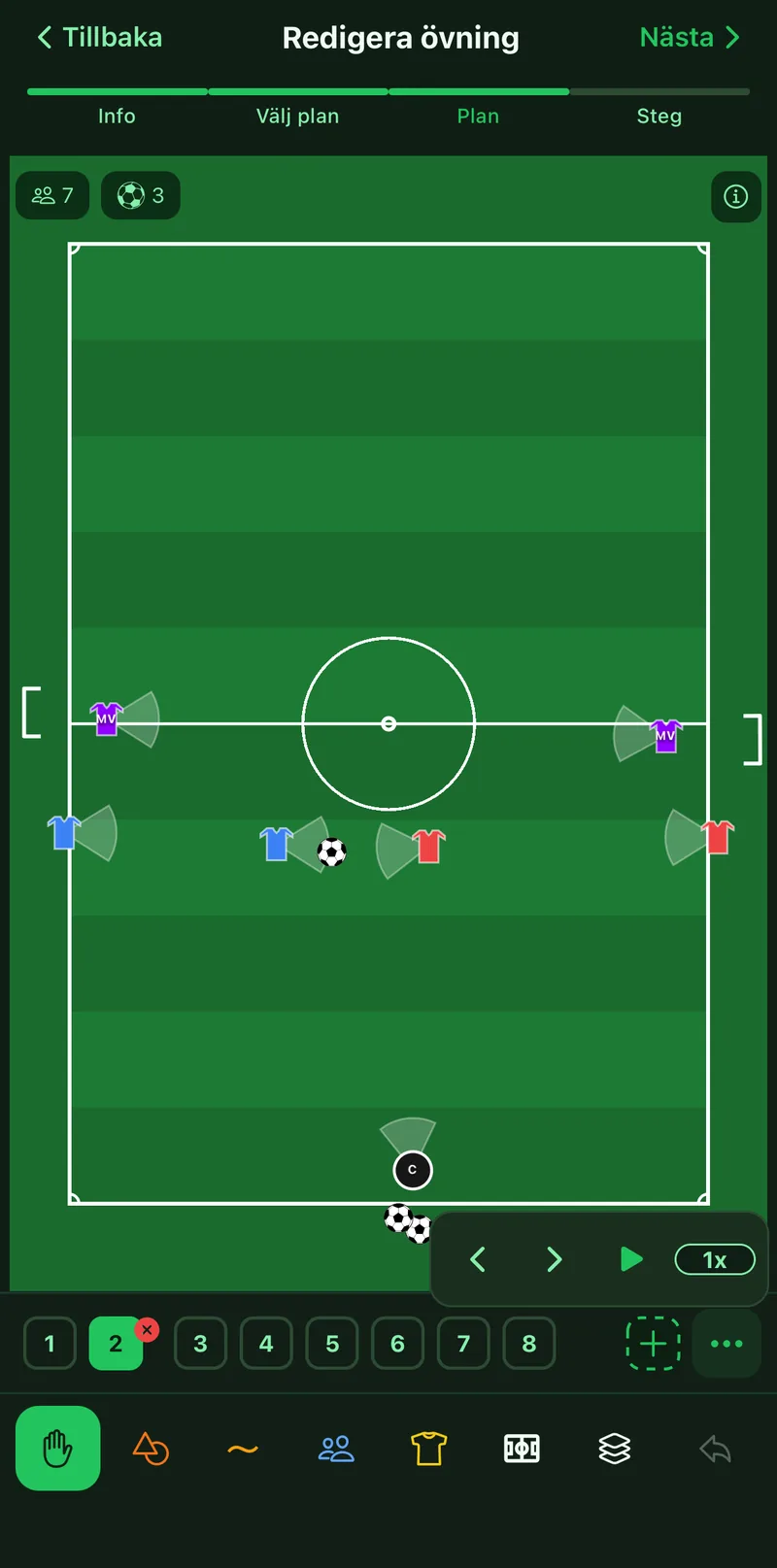
9Hide, undo and delete
The layers icon lists everything in the slide: tap the eye on a row to hide that object in just this step without deleting it. Undo and redo step through your changes. Delete in the objects panel removes what you tap, and asks whether the object should go from every slide.
10Grid, whiteboard and corridors
The View row at the bottom of the objects panel has four switches: large icons, a grid that snaps objects, a white board instead of grass, and the five vertical coaching corridors.